> ## Documentation Index
> Fetch the complete documentation index at: https://support.getproximate.app/llms.txt
> Use this file to discover all available pages before exploring further.
# Set Up Proximate Cursor Alerts for Claude Code CLI
> Wire Proximate Advanced Integrations into Claude Code CLI so a cursor icon appears whenever Claude finishes a task — no terminal-watching required.
Claude Code CLI is a natural fit for Proximate Advanced Integrations: you kick off a task, switch to something else, and then have no idea when Claude is done unless you keep glancing at the terminal. This guide shows you how to create an integration for Claude Code and configure it so an icon appears right next to your cursor the moment Claude finishes responding — no terminal-watching required.
## Step 1: Create the Integration in Proximate
With Proximate running, open the menu from the menu bar, dock, or taskbar, then select **Settings**.
In the sidebar, select the **Notifications** tab. Make sure the switch in the sidebar is enabled, then select **Advanced Integrations** on the far-right of the tab bar.
Click **Add New**.
Enter a display name — for this example, **Claude Code CLI**.
Select the icon to use. Pick the **Claude Code CLI** option in the icon library, or choose any other icon you prefer.
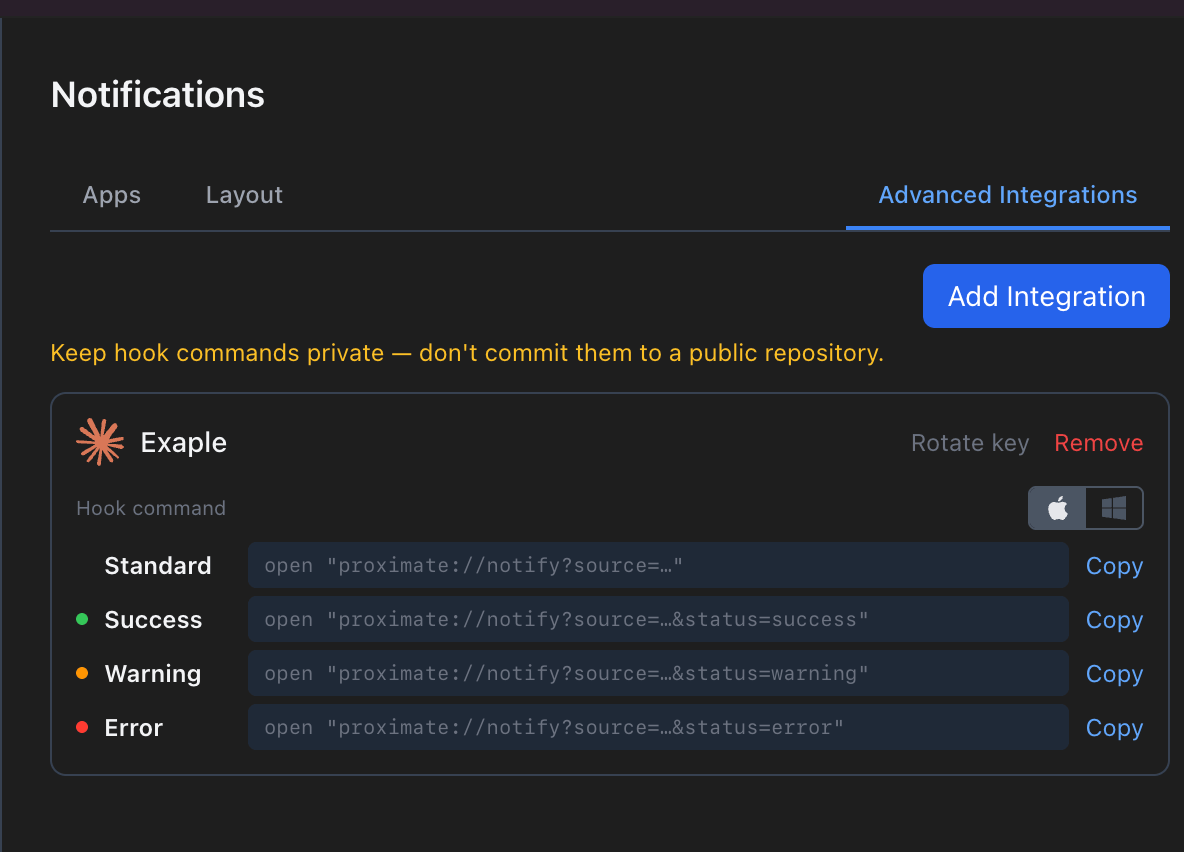
Click **Create**. Your new integration appears with four hook commands ready to copy.
 ## Step 2: Wire the Integration into Claude Code
Claude Code can run a shell command on its **Stop** event, which fires every time Claude finishes responding. You'll point that event at your Proximate Success hook so you get a green icon each time a task completes.
On your integration card in Proximate, click the **Success** hook command (or its **Copy** button). The full command is now on your clipboard.
Open Claude Code's settings file in your editor. To enable notifications for **all projects**, use the global settings file:
* **macOS / Linux:** `~/.claude/settings.json`
* **Windows:** `%APPDATA%\Claude\settings.json`
To limit notifications to a **single project**, use the `.claude/settings.json` file inside that project's folder instead.
Add a `Stop` hook that runs your Proximate command. If the file is empty, paste this entire block — then replace the example ID with your own ID from the copied command:
```json ~/.claude/settings.json theme={null}
{
"hooks": {
"Stop": [
{
"hooks": [
{
"type": "command",
"command": "open \"proximate://notify?source=YOUR_ID&status=success\"",
"async": true
}
]
}
]
}
}
```
Inside `settings.json`, the double quotes around the `proximate://` URL must be escaped as `\"`. The safest approach is to paste the block above as-is and then swap in your integration ID, rather than typing the URL by hand. If your settings file already has a `"hooks"` section, add `"Stop"` alongside the events already there — don't replace the existing section.
Save `settings.json`. Inside Claude Code, run the `/hooks` command to confirm your new Stop hook is listed.
Ask Claude Code to do any small task. When it finishes, a green Claude Code icon should appear right next to your cursor. If it doesn't, see the [Troubleshooting guide](/advanced-integrations/troubleshooting).
## What Happens Next
Every time Claude Code completes a response, the Stop event fires, which runs your `open proximate://…` command, which tells Proximate to display the icon. You'll see the icon appear by your cursor wherever it happens to be on screen — no need to have the terminal visible or to keep an eye on it.
If you want different signals for different outcomes (for example, a Warning icon when Claude produces a warning-level result), you can add additional hook types using the same pattern in the `hooks` array.
You can create separate integrations for different projects and point each project's `.claude/settings.json` at its own hook command. That way you can tell at a glance which project is pinging you.
## Step 2: Wire the Integration into Claude Code
Claude Code can run a shell command on its **Stop** event, which fires every time Claude finishes responding. You'll point that event at your Proximate Success hook so you get a green icon each time a task completes.
On your integration card in Proximate, click the **Success** hook command (or its **Copy** button). The full command is now on your clipboard.
Open Claude Code's settings file in your editor. To enable notifications for **all projects**, use the global settings file:
* **macOS / Linux:** `~/.claude/settings.json`
* **Windows:** `%APPDATA%\Claude\settings.json`
To limit notifications to a **single project**, use the `.claude/settings.json` file inside that project's folder instead.
Add a `Stop` hook that runs your Proximate command. If the file is empty, paste this entire block — then replace the example ID with your own ID from the copied command:
```json ~/.claude/settings.json theme={null}
{
"hooks": {
"Stop": [
{
"hooks": [
{
"type": "command",
"command": "open \"proximate://notify?source=YOUR_ID&status=success\"",
"async": true
}
]
}
]
}
}
```
Inside `settings.json`, the double quotes around the `proximate://` URL must be escaped as `\"`. The safest approach is to paste the block above as-is and then swap in your integration ID, rather than typing the URL by hand. If your settings file already has a `"hooks"` section, add `"Stop"` alongside the events already there — don't replace the existing section.
Save `settings.json`. Inside Claude Code, run the `/hooks` command to confirm your new Stop hook is listed.
Ask Claude Code to do any small task. When it finishes, a green Claude Code icon should appear right next to your cursor. If it doesn't, see the [Troubleshooting guide](/advanced-integrations/troubleshooting).
## What Happens Next
Every time Claude Code completes a response, the Stop event fires, which runs your `open proximate://…` command, which tells Proximate to display the icon. You'll see the icon appear by your cursor wherever it happens to be on screen — no need to have the terminal visible or to keep an eye on it.
If you want different signals for different outcomes (for example, a Warning icon when Claude produces a warning-level result), you can add additional hook types using the same pattern in the `hooks` array.
You can create separate integrations for different projects and point each project's `.claude/settings.json` at its own hook command. That way you can tell at a glance which project is pinging you.