> ## Documentation Index
> Fetch the complete documentation index at: https://support.getproximate.app/llms.txt
> Use this file to discover all available pages before exploring further.
# How to Set Up an Advanced Integration in Proximate
> Create a custom hook integration in Proximate to surface cursor notifications from any script, CLI tool, or automation in under 5 minutes.
Advanced Integrations let any script or tool that can open a link light up an icon by your cursor when it finishes. Once you've created an integration in Proximate, you get a set of hook commands you can drop into shell scripts, config files, Makefiles, CI pipelines, or anywhere else your tools live. This page walks you through creating the integration and explains everything you need to know before wiring it up.
## Creating the Integration
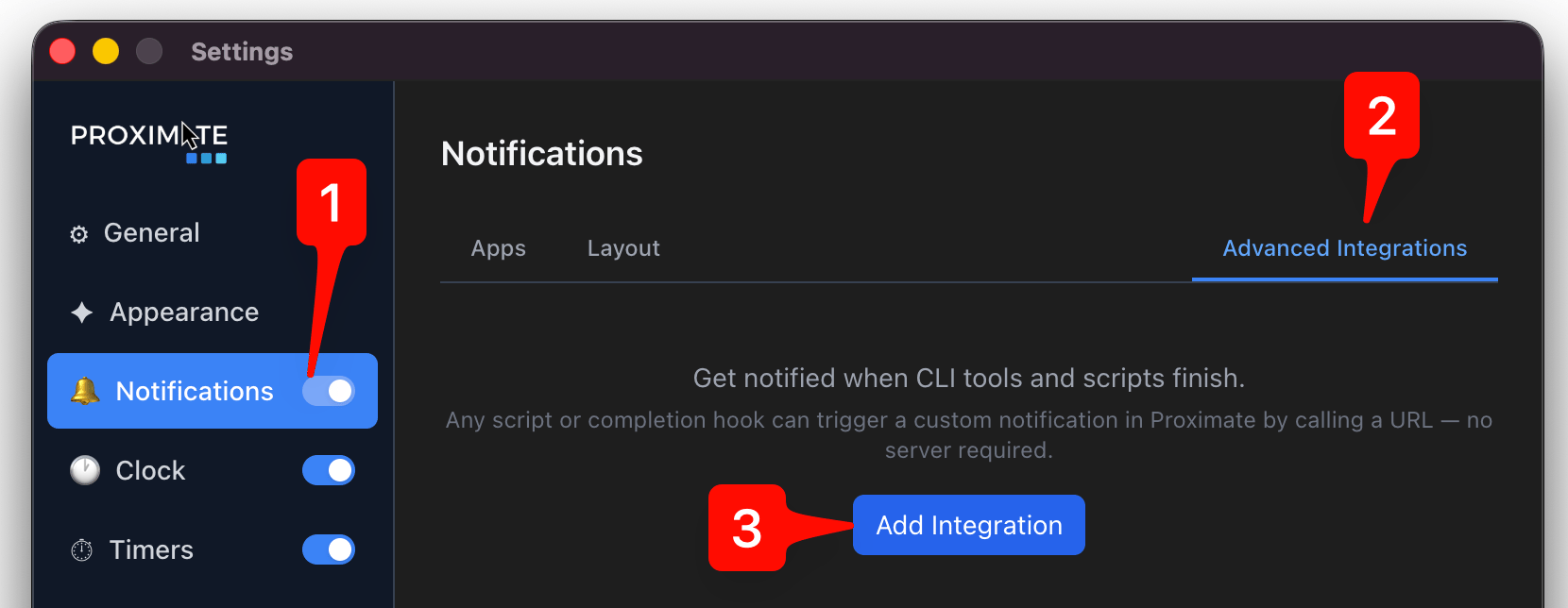
Click the Proximate icon in the menu bar, dock, or system tray, then click **Settings…**
In the left sidebar, click **Notifications** (the bell icon). At the top of the Notifications panel, click the **Advanced Integrations** tab on the right side of the tab bar, then click **Add Integration**.
 Give your integration a **Display name** and pick the icon you want to see appear by your cursor when this integration fires a notification. The display name only appears inside Proximate's settings — it's how you'll identify this integration later if you have several.
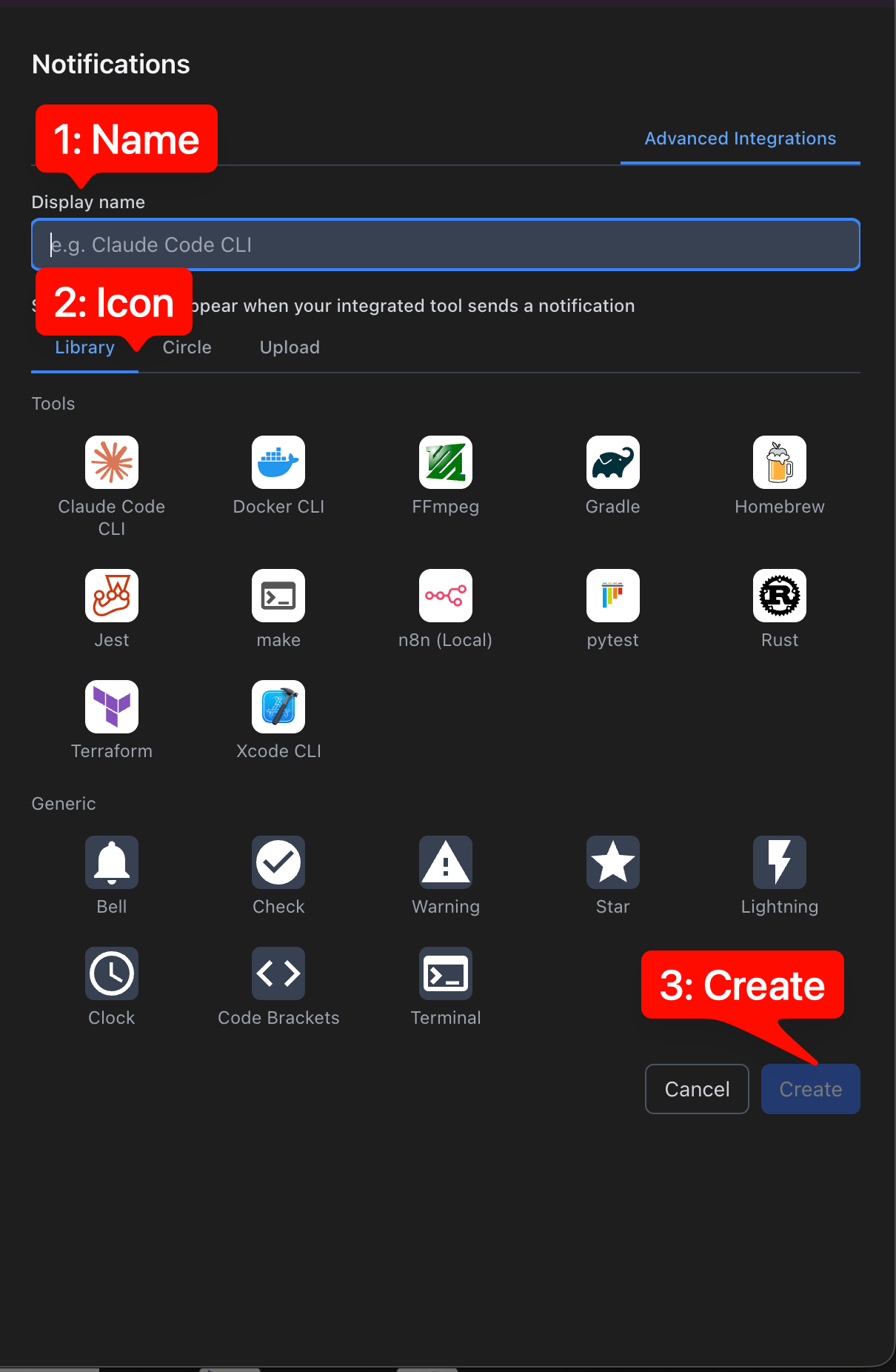 You have three icon options:
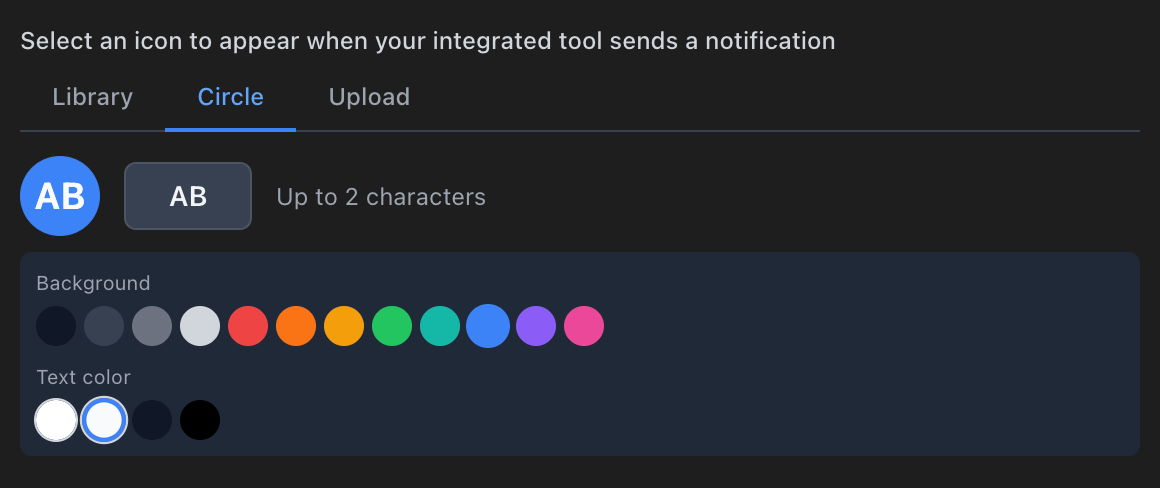
* **Library tab** — a grid of icons for common tools (Claude Code, Docker, FFmpeg, pytest, and more), plus a set of general-purpose icons at the bottom. Click any icon to customize its background and icon colors.\\
You have three icon options:
* **Library tab** — a grid of icons for common tools (Claude Code, Docker, FFmpeg, pytest, and more), plus a set of general-purpose icons at the bottom. Click any icon to customize its background and icon colors.\\
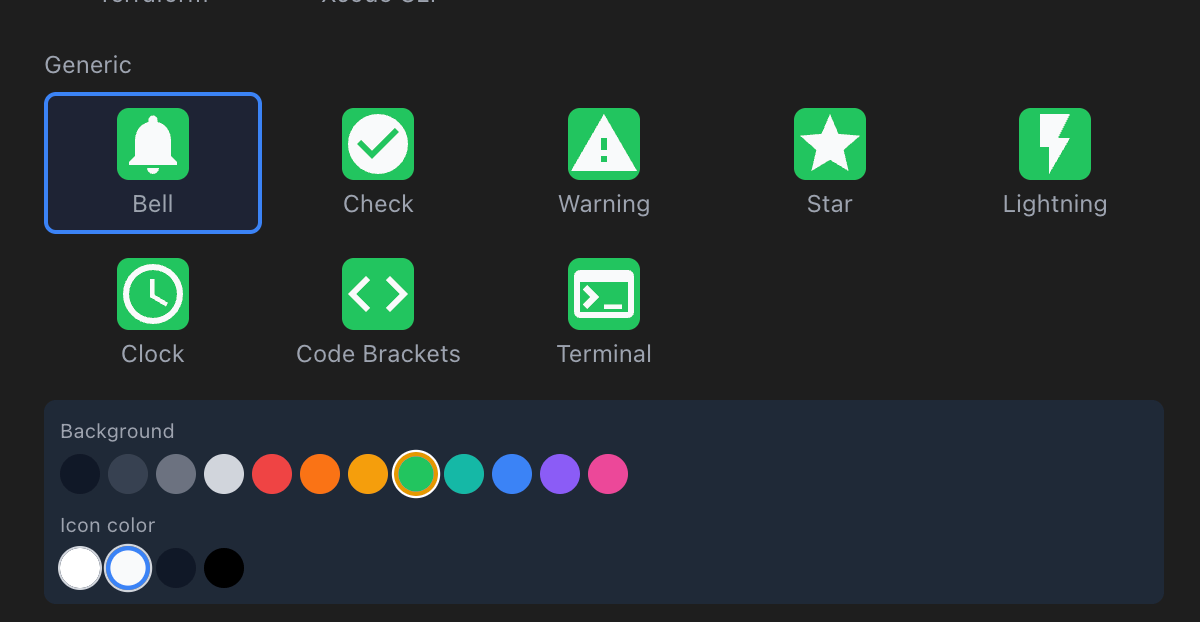 * **Circle** — a circle displaying up to 2 alphanumeric characters of your choice, with customizable background and text colors.\\
 * **Upload** — upload your own image in PNG, JPG, SVG, ICNS, or ICO format.
 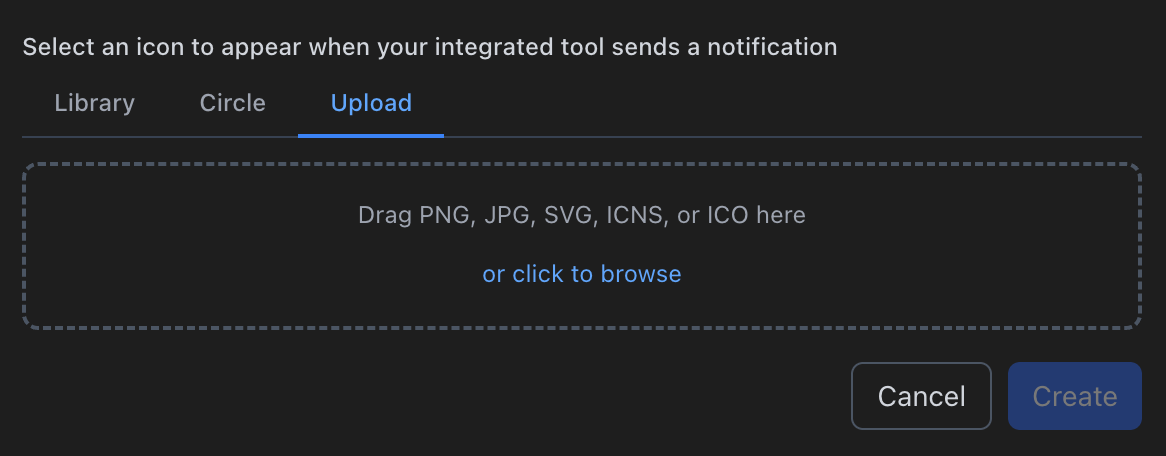 Give your integration a **Display name** and pick the icon you want to see appear by your cursor when this integration fires a notification. The display name only appears inside Proximate's settings — it's how you'll identify this integration later if you have several.
You have three icon options:
* **Library tab** — a grid of icons for common tools (Claude Code, Docker, FFmpeg, pytest, and more), plus a set of general-purpose icons at the bottom. Click any icon to customize its background and icon colors.\
* **Circle** — a circle displaying up to 2 alphanumeric characters of your choice, with customizable background and text colors.\
* **Upload** — upload your own image in PNG, JPG, SVG, ICNS, or ICO format.
Click the **Create** button to save your integration. The button stays disabled until you've entered a name and chosen an icon, so make sure both are set before clicking.
Click the **Create** button to save your integration. The button stays disabled until you've entered a name and chosen an icon, so make sure both are set before clicking.
Your new integration immediately appears on the Advanced Integrations tab. You'll see four hook commands — one for each hook type — ready to copy and paste into your tools.
## The Four Hook Types
Each hook command, when triggered by your tool, displays the icon you selected right next to your mouse pointer. The icon behaves exactly like other app icon notifications in Proximate — it appears, you notice it, you move your cursor away, and it fades.
Give your integration a **Display name** and pick the icon you want to see appear by your cursor when this integration fires a notification. The display name only appears inside Proximate's settings — it's how you'll identify this integration later if you have several.
You have three icon options:
* **Library tab** — a grid of icons for common tools (Claude Code, Docker, FFmpeg, pytest, and more), plus a set of general-purpose icons at the bottom. Click any icon to customize its background and icon colors.\
* **Circle** — a circle displaying up to 2 alphanumeric characters of your choice, with customizable background and text colors.\
* **Upload** — upload your own image in PNG, JPG, SVG, ICNS, or ICO format.
Click the **Create** button to save your integration. The button stays disabled until you've entered a name and chosen an icon, so make sure both are set before clicking.
Click the **Create** button to save your integration. The button stays disabled until you've entered a name and chosen an icon, so make sure both are set before clicking.
Your new integration immediately appears on the Advanced Integrations tab. You'll see four hook commands — one for each hook type — ready to copy and paste into your tools.
## The Four Hook Types
Each hook command, when triggered by your tool, displays the icon you selected right next to your mouse pointer. The icon behaves exactly like other app icon notifications in Proximate — it appears, you notice it, you move your cursor away, and it fades.
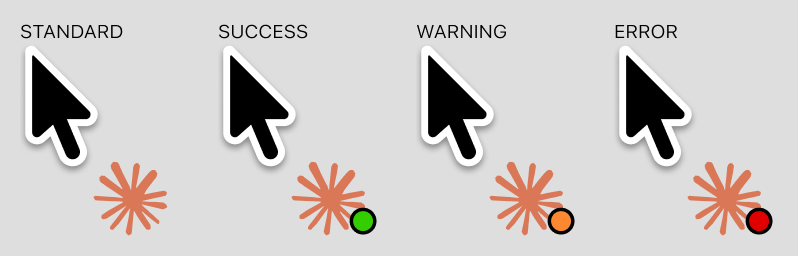 For a breakdown of when to use each hook type, see [The Four Hook Types](/advanced-integrations/overview#the-four-hook-types) on the Overview page. You don't have to use all four — if you only want to be notified about failures, wire up just the **Error** hook and leave the others unused.
## Keeping Your Hook ID Private
Each hook command contains a unique private ID that Proximate uses to identify your integration. You should treat this ID the same way you'd treat an API key or password.
Don't commit hook commands to a public repository or paste them anywhere publicly accessible. Proximate intentionally truncates hook commands on screen so the IDs aren't visible at a glance — the full command is only placed on your clipboard when you click it or the **Copy** button.
A few things that limit the risk if an ID is ever exposed:
* A hook command can **only show an icon** by your cursor. It cannot read your data, access your files, or execute code on your machine.
* Proximate **ignores signals from any ID it doesn't recognize**, so a stranger can't invent an ID and trigger your notifications.
* Each integration is **rate-limited to 10 signals per minute**, so a leaked ID can't be used to flood your screen.
If an ID is exposed, open the integration in Proximate and click **Rotate key**. Your hook commands will be regenerated with new IDs immediately, and the old IDs will stop working. You'll need to update any scripts or config files that referenced the old commands.
## Next Steps
Once you have your hook commands, drop them into your tools. For ready-made, copy-paste recipes for popular tools — Docker, FFmpeg, pytest, n8n, Rust, and more — see the recipe pages for [macOS](/advanced-integrations/recipes-macos) or [Windows](/advanced-integrations/recipes-windows). For a complete end-to-end example, see the [Claude Code CLI guide](/advanced-integrations/claude-code-example).
For questions or feedback, start a chat with us using the help widget in the bottom-right corner of any page, or email [support@getproximate.app](mailto:support@getproximate.app).
For a breakdown of when to use each hook type, see [The Four Hook Types](/advanced-integrations/overview#the-four-hook-types) on the Overview page. You don't have to use all four — if you only want to be notified about failures, wire up just the **Error** hook and leave the others unused.
## Keeping Your Hook ID Private
Each hook command contains a unique private ID that Proximate uses to identify your integration. You should treat this ID the same way you'd treat an API key or password.
Don't commit hook commands to a public repository or paste them anywhere publicly accessible. Proximate intentionally truncates hook commands on screen so the IDs aren't visible at a glance — the full command is only placed on your clipboard when you click it or the **Copy** button.
A few things that limit the risk if an ID is ever exposed:
* A hook command can **only show an icon** by your cursor. It cannot read your data, access your files, or execute code on your machine.
* Proximate **ignores signals from any ID it doesn't recognize**, so a stranger can't invent an ID and trigger your notifications.
* Each integration is **rate-limited to 10 signals per minute**, so a leaked ID can't be used to flood your screen.
If an ID is exposed, open the integration in Proximate and click **Rotate key**. Your hook commands will be regenerated with new IDs immediately, and the old IDs will stop working. You'll need to update any scripts or config files that referenced the old commands.
## Next Steps
Once you have your hook commands, drop them into your tools. For ready-made, copy-paste recipes for popular tools — Docker, FFmpeg, pytest, n8n, Rust, and more — see the recipe pages for [macOS](/advanced-integrations/recipes-macos) or [Windows](/advanced-integrations/recipes-windows). For a complete end-to-end example, see the [Claude Code CLI guide](/advanced-integrations/claude-code-example).
For questions or feedback, start a chat with us using the help widget in the bottom-right corner of any page, or email [support@getproximate.app](mailto:support@getproximate.app).