

Step 1: Create the Integration in Proximate
1
Open Proximate Settings
With Proximate running, open the menu from the menu bar, dock, or taskbar, then select Settings.
2
Go to the Notifications tab
In the sidebar, select the Notifications tab. Make sure the switch in the sidebar is enabled, then select Advanced Integrations on the far-right of the tab bar.
3
Add a new integration
Click Add New.
4
Name the integration
Enter a display name — for this example, Claude Code CLI.
5
Choose an icon
Select the icon to use. Pick the Claude Code CLI option in the icon library, or choose any other icon you prefer.
6
Create the integration
Click Create. Your new integration appears with four hook commands ready to copy.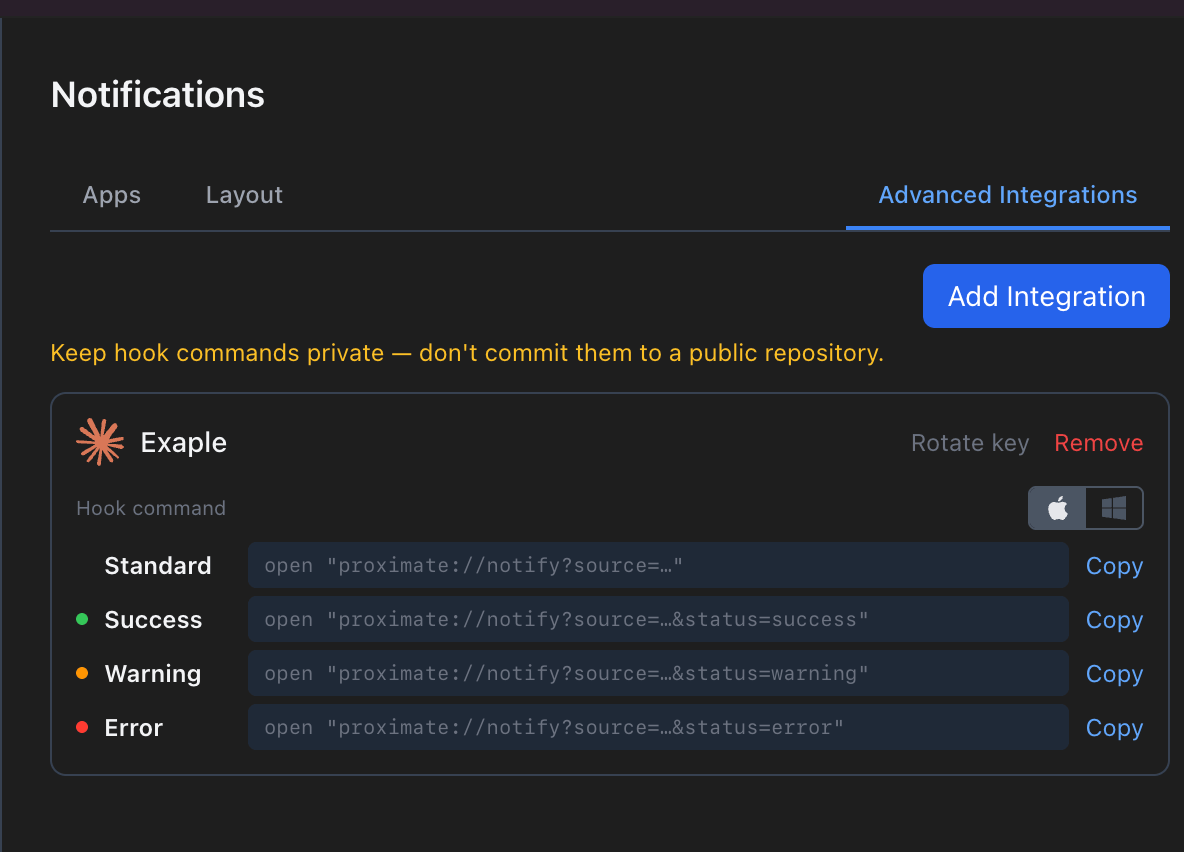
Step 2: Wire the Integration into Claude Code
Claude Code can run a shell command on its Stop event, which fires every time Claude finishes responding. You’ll point that event at your Proximate Success hook so you get a green icon each time a task completes.1
Copy your Success hook command
On your integration card in Proximate, click the Success hook command (or its Copy button). The full command is now on your clipboard.
2
Open Claude Code's settings file
Open Claude Code’s settings file in your editor. To enable notifications for all projects, use the global settings file:
- macOS / Linux:
~/.claude/settings.json - Windows:
%APPDATA%\Claude\settings.json
.claude/settings.json file inside that project’s folder instead.3
Add the Stop hook
Add a
Stop hook that runs your Proximate command. If the file is empty, paste this entire block — then replace the example ID with your own ID from the copied command:~/.claude/settings.json
Inside
settings.json, the double quotes around the proximate:// URL must be escaped as \". The safest approach is to paste the block above as-is and then swap in your integration ID, rather than typing the URL by hand. If your settings file already has a "hooks" section, add "Stop" alongside the events already there — don’t replace the existing section.4
Save and verify
Save
settings.json. Inside Claude Code, run the /hooks command to confirm your new Stop hook is listed.5
Test end to end
Ask Claude Code to do any small task. When it finishes, a green Claude Code icon should appear right next to your cursor. If it doesn’t, see the Troubleshooting guide.
What Happens Next
Every time Claude Code completes a response, the Stop event fires, which runs youropen proximate://… command, which tells Proximate to display the icon. You’ll see the icon appear by your cursor wherever it happens to be on screen — no need to have the terminal visible or to keep an eye on it.
If you want different signals for different outcomes (for example, a Warning icon when Claude produces a warning-level result), you can add additional hook types using the same pattern in the hooks array.