
Accessing the billing portal
1
Visit the billing portal
Go to store.xpdynamics.com/billing to access your order and subscription details.
2
Enter your order email address
Enter the email address you used when placing your original order. You’ll be sent a secure link to access your subscription and billing settings.
Not sure which email address you used? Message us with the help widget in the bottom-right corner, or email support@getproximate.app and the team will help you locate your account.
Updating your payment details
1
Find the Payment row
In the subscription details area, look for the row labeled “Payment”. There is an edit icon at the far-right end of the row.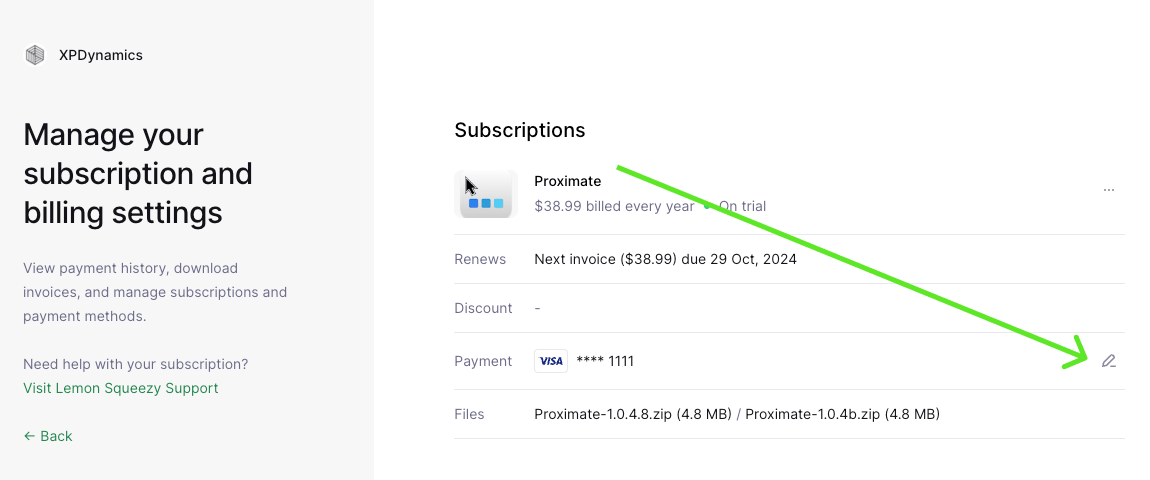
2
Update your payment method
Click the edit icon and follow the prompts to add a new payment method or update an existing one.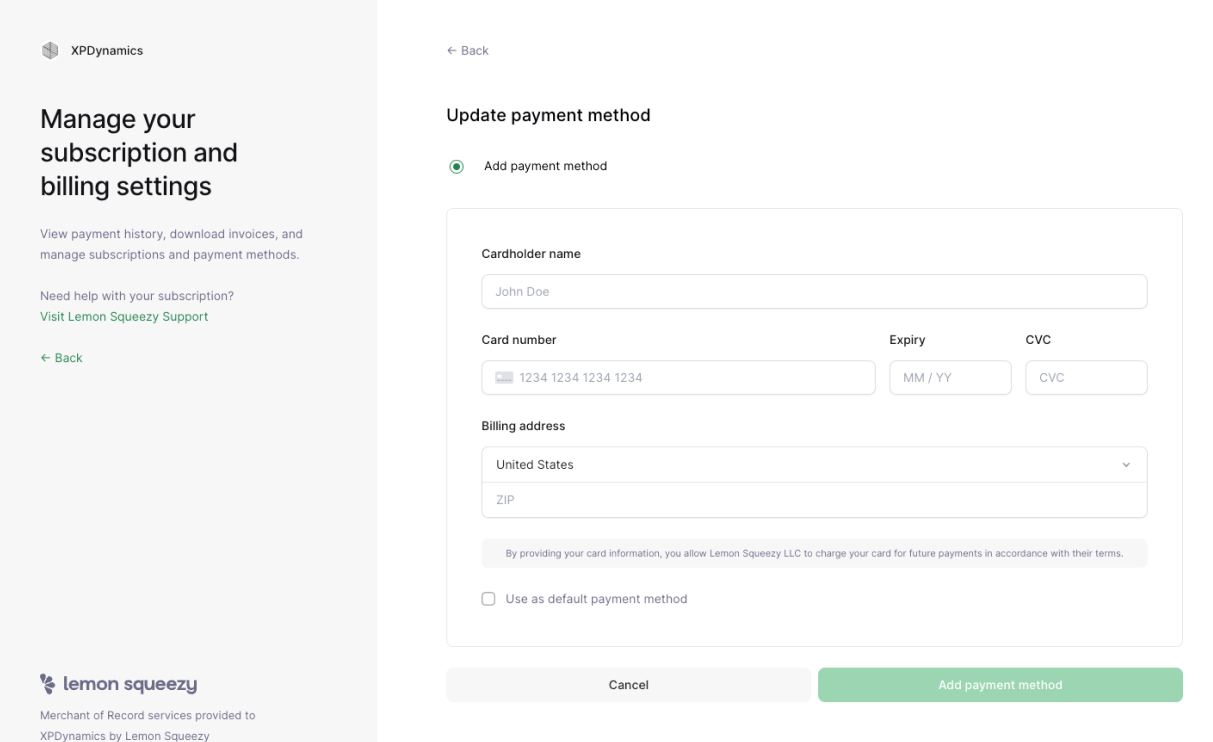
Cancelling your subscription
1
Locate the Subscriptions area menu
In the Subscriptions area of the billing portal, look to the right for a small icon showing 3 dots.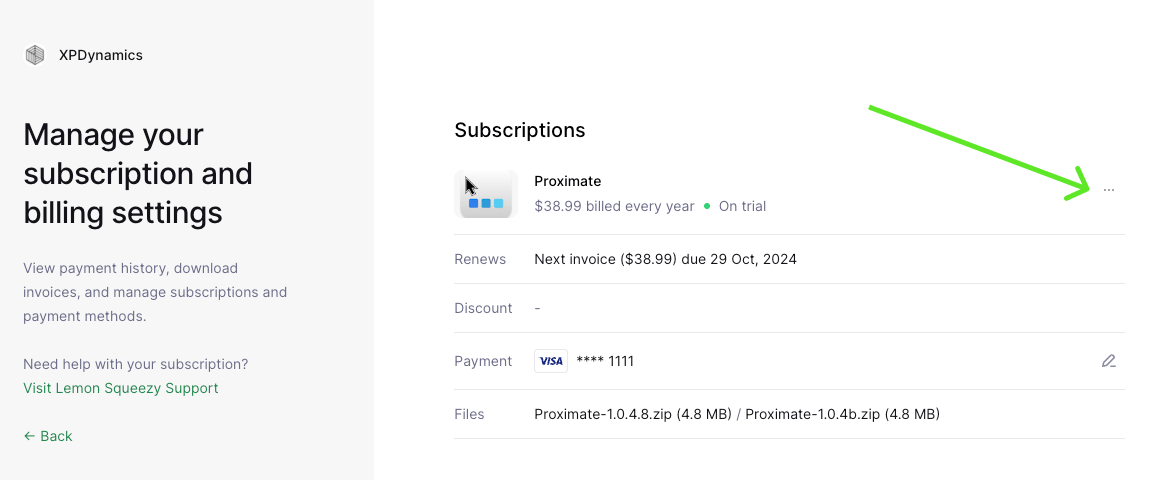
2
Open the cancellation option
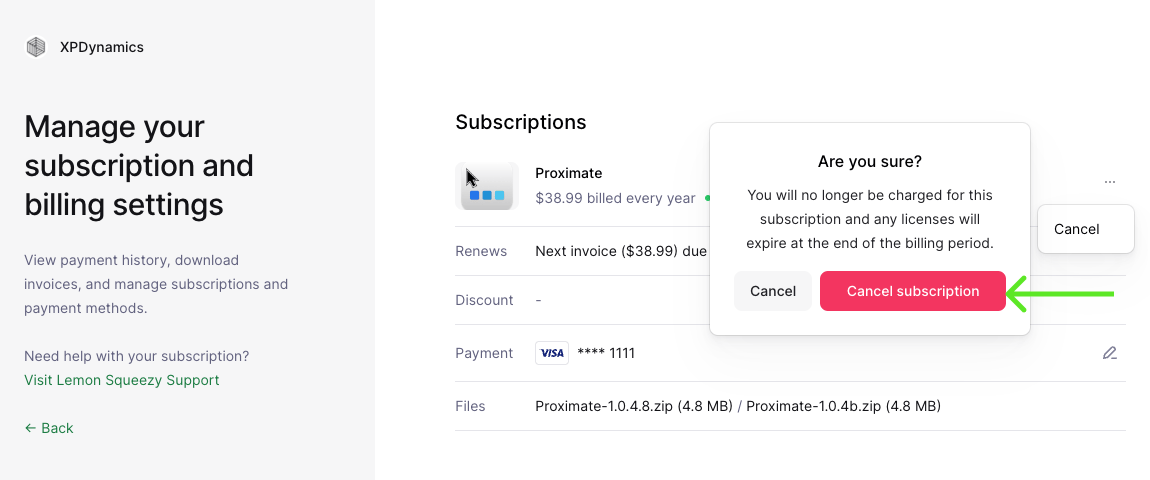
Click the 3-dot icon, then click “Cancel” from the menu that appears.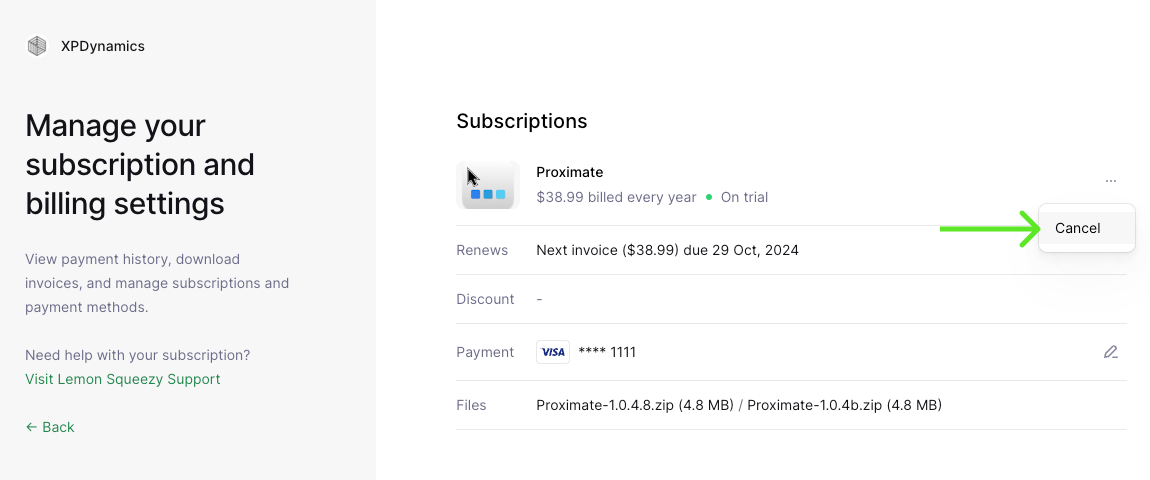
3
Confirm your cancellation
Follow the on-screen prompts to confirm your decision to cancel. Your subscription will remain active until the end of the current billing period.